
How to change your email address
Before you start
- Make sure you can access the new email inbox.
- Keep an eye on your spam or junk folder.
- You will need to confirm the new email with a code.
Change your email address
Step 1: Open your account settings
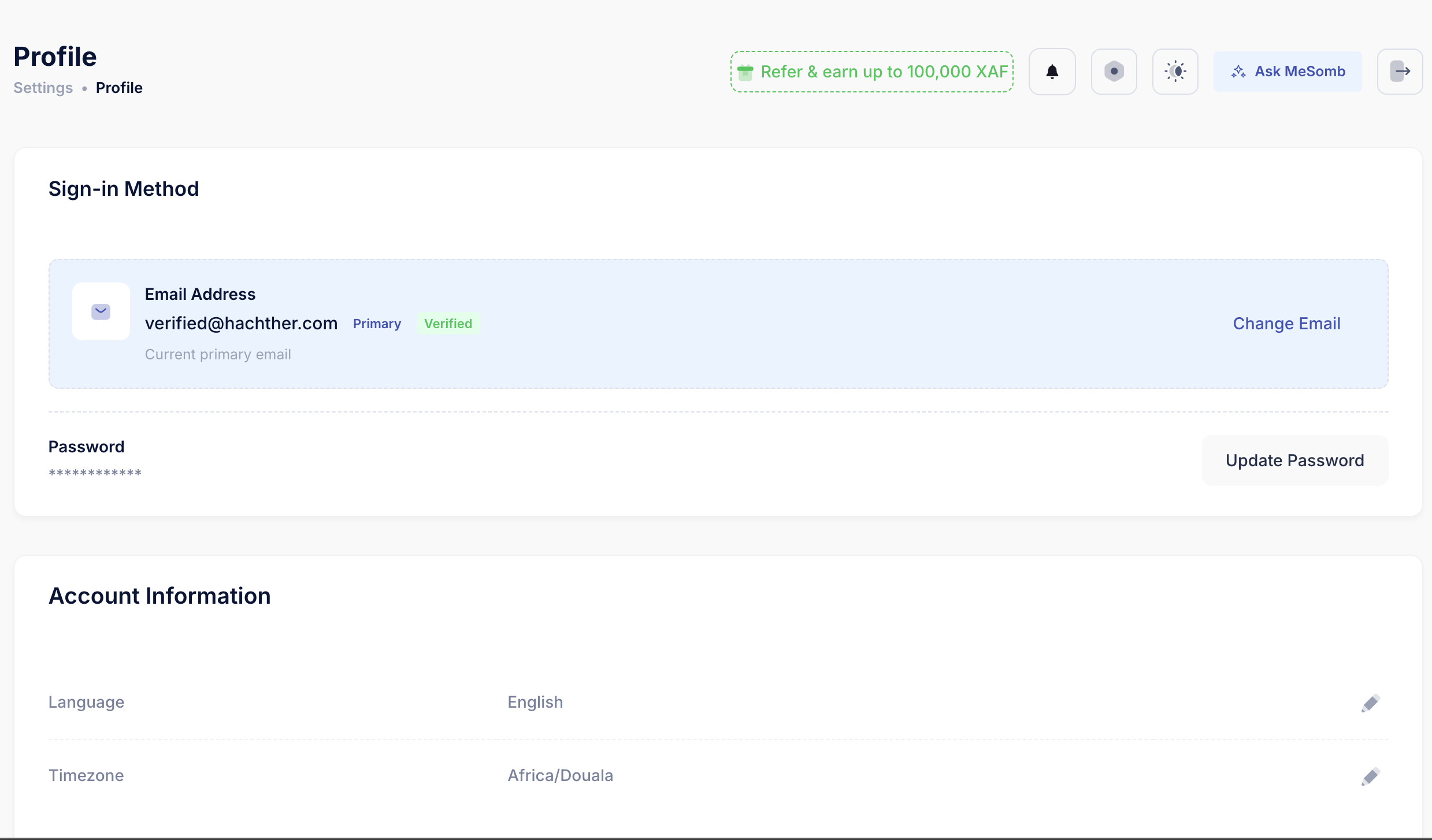
Log in to your MeSomb account and go to Account Settings.
In the Sign-in Method section, you will see your current primary email and any other email addresses linked to your account.
Step 2: Start the email change
Click Change Email.
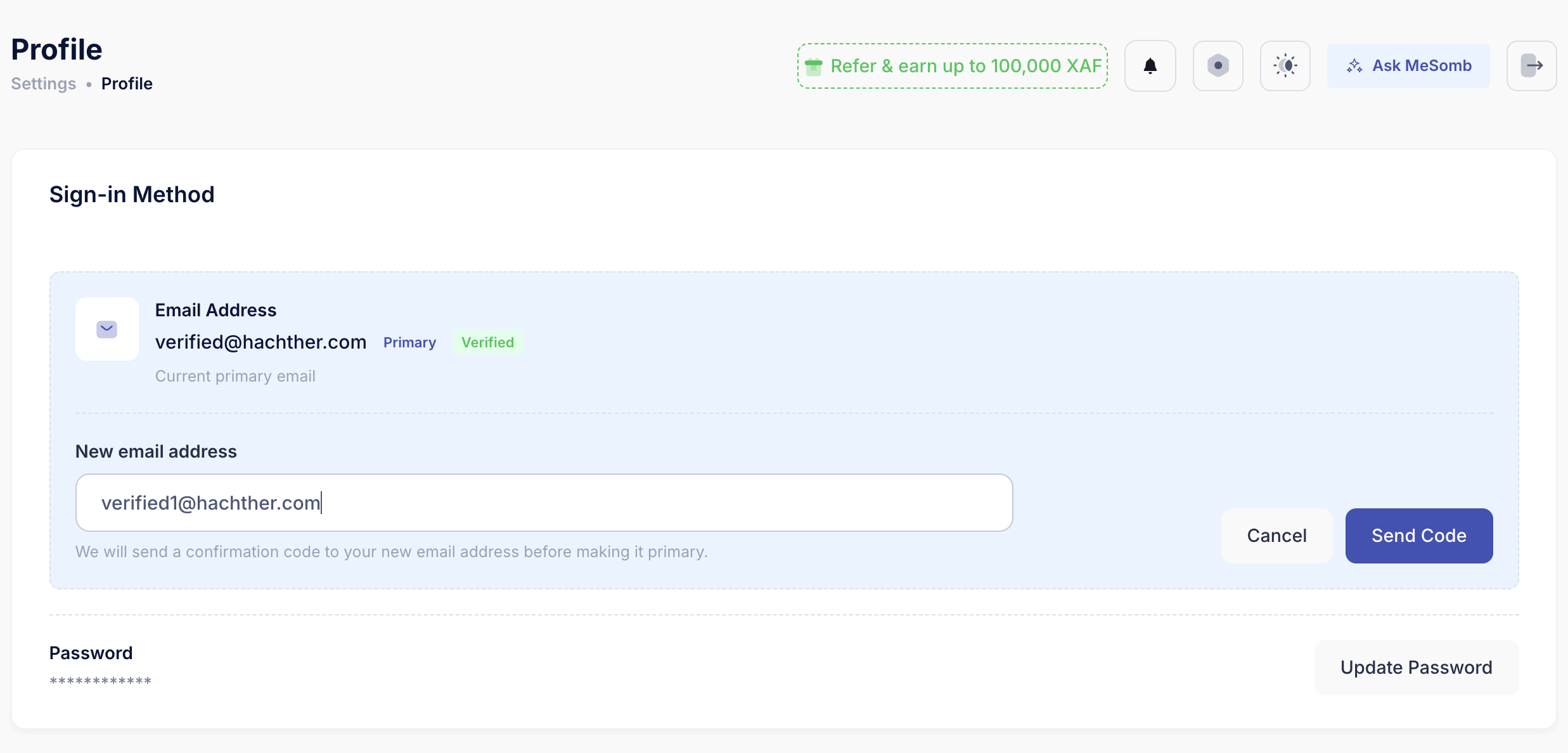
Enter the new email address you want to use, then click Send Code.
Step 3: Check your inbox
MeSomb will send a confirmation code to your new email address.
If you do not see it right away, check your spam or junk folder.
Step 4: Enter the verification code
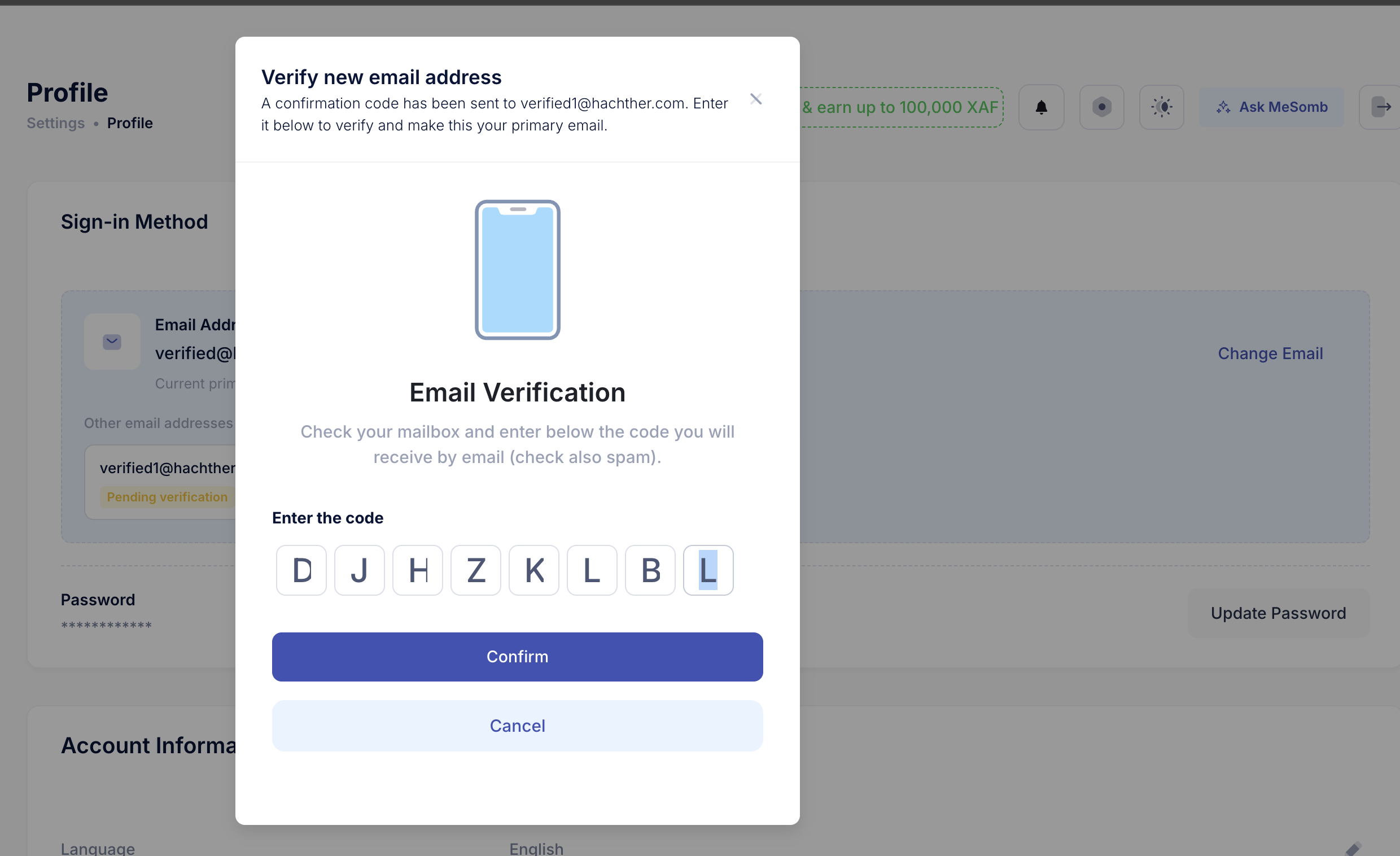
A verification window will open.
Enter the code you received by email.
Once the code is accepted, your new email becomes your primary email address.
Delete an old email address
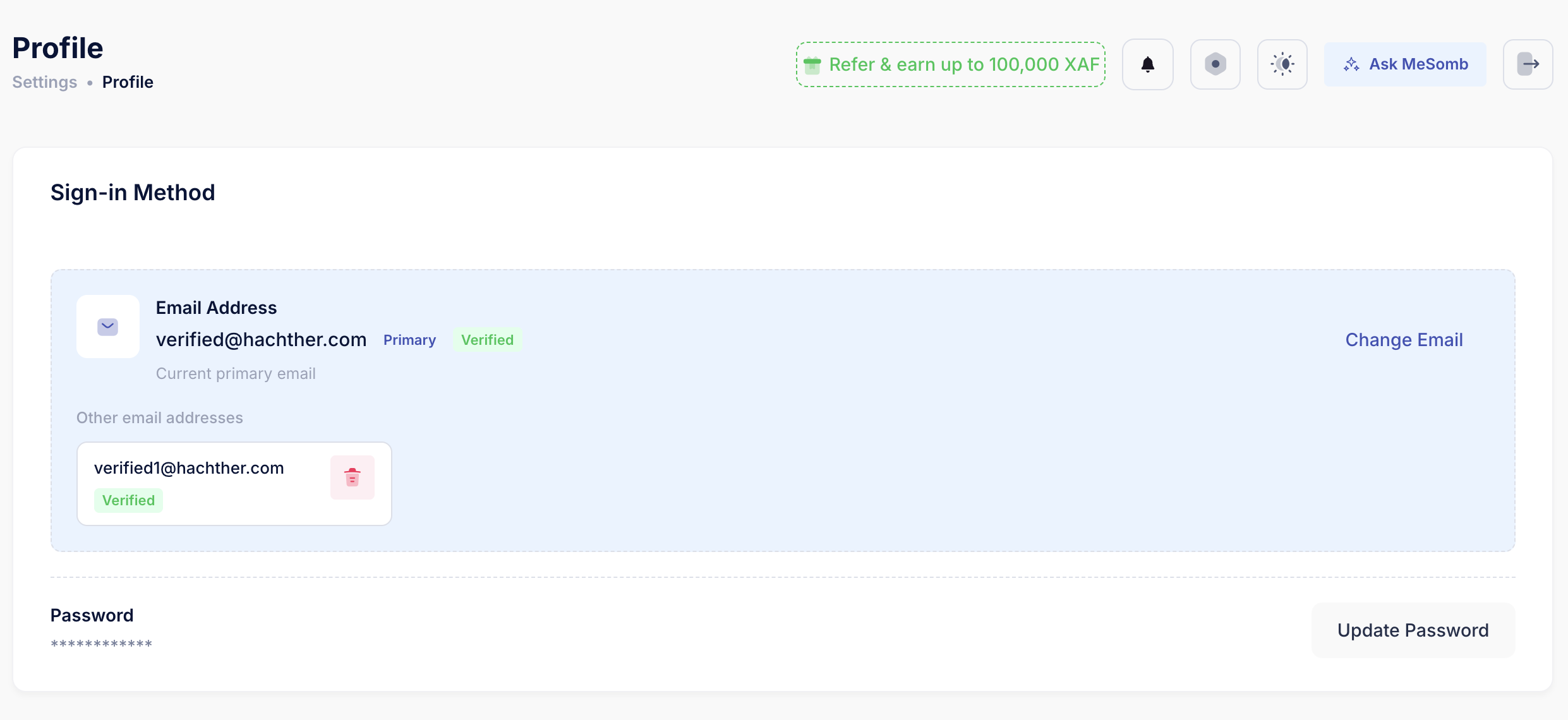
If you have old secondary email addresses on your account, you can remove them.
- In Other email addresses, find the email you want to remove.
- Click the delete icon.
- Confirm the deletion.
Your primary email cannot be deleted from this list.
Important notes
- Your new email must be verified before it becomes your main email.
- Your main email is marked as Primary.
- Some email addresses may appear as Pending verification until the code is confirmed.