
How to withdraw money
Use this guide to withdraw available application funds from MeSomb Business to a supported destination, such as a mobile money account. No API integration is required.
The video demonstrates a mobile money quote, not a completed withdrawal. It stops at review and was cancelled without sending money. The example amount, recipient and fees are not instructions for your own withdrawal.
Before you start
- Sign in to MeSomb Business and select the application whose funds you want to withdraw.
- Use the Live environment for real money. Sandbox is for testing; a sandbox result does not transfer real funds.
- Your personal profile must be verified. Your account must be eligible to debit funds, and the application must allow withdrawals.
- You need permission to manage funds for the application: owner, administrator, or funds-management access. A read-only or developer role alone does not grant withdrawal access.
- Set your withdrawal PIN before choosing a method. Keep this PIN private; it is not your login password.
- Check that the relevant application balance can cover the amount and fees, and that your account and application limits allow the debit.
Related requirements:
- Set or reset your withdrawal PIN
- Application statuses and transaction limits
- Account verification basics
1. Open the correct application
Open MeSomb Business using the link below. Check the application selected in the workspace switcher and confirm that you are working in Live, not Sandbox.
The selected application matters: a balance on another application is not the balance you are about to withdraw.
2. Open Withdraw funds
Open Move money, then Withdraw funds in the sidebar.
The screenshots and video use the same interface language as this guide.
If Withdraw funds is missing, check your application selection and ask its owner or administrator to verify your permissions. Do not share another person's login to bypass access restrictions.
3. Choose a withdrawal method
Choose the method shown for your application and country. For a mobile money withdrawal, choose Money Deposit. For a bank withdrawal, choose Bank Deposit if available and use a registered destination bank account.
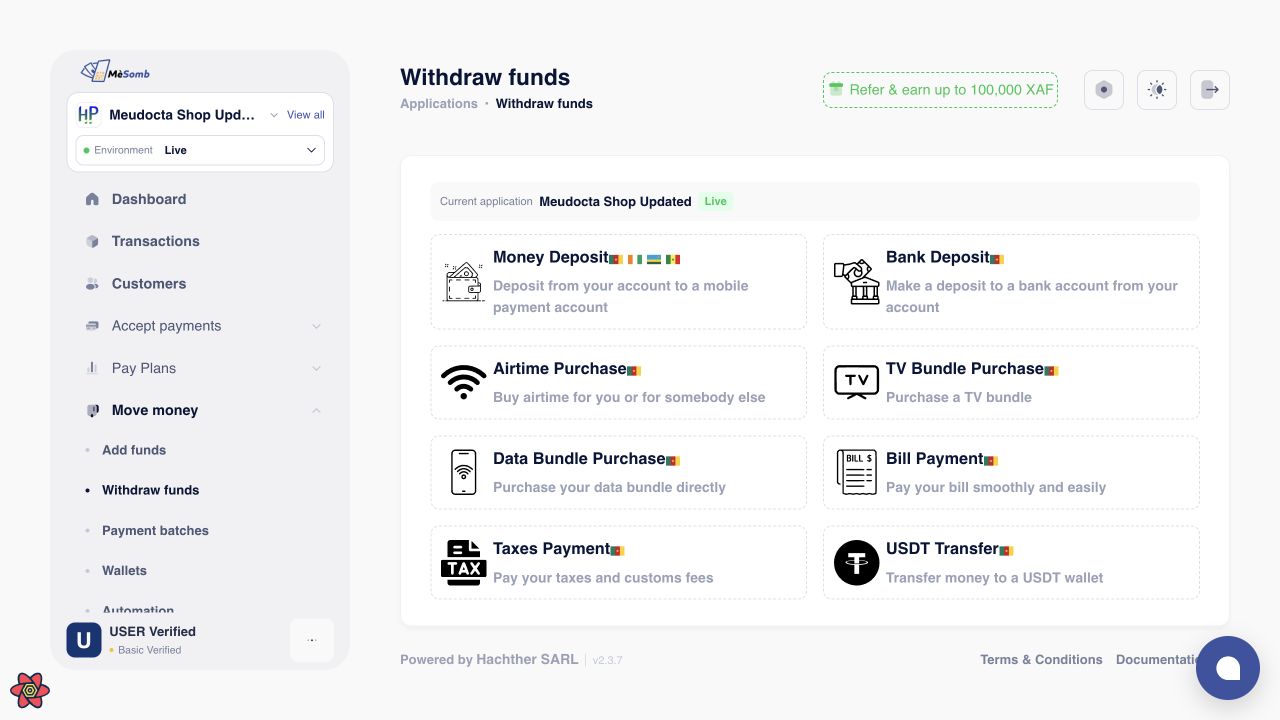
This screenshot shows a demonstration account. Available methods depend on your application and country. No withdrawal was submitted for this capture.
Only use the methods offered in your workspace. Country, operator and account configuration affect availability; this guide does not promise that every method is available to every account.
If MeSomb asks you to set a PIN, complete that step in Settings, then Security, before returning to the withdrawal page.
4. Enter the withdrawal details
- Select the country if the form offers a country selector.
- Choose the source account under Pay from if your application has separate provider balances. With merged accounts, the application selects the source account automatically.
- Enter the destination required by the chosen method. For mobile money, check the country code, phone number and operator. For a bank transfer, select the correct registered bank account.
- Enter the amount and review its currency. Add a reason or reference if useful, then enter your withdrawal PIN.
- Submit the form to open the review screen. This first submission requests a quote; it is not the final confirmation to send money.
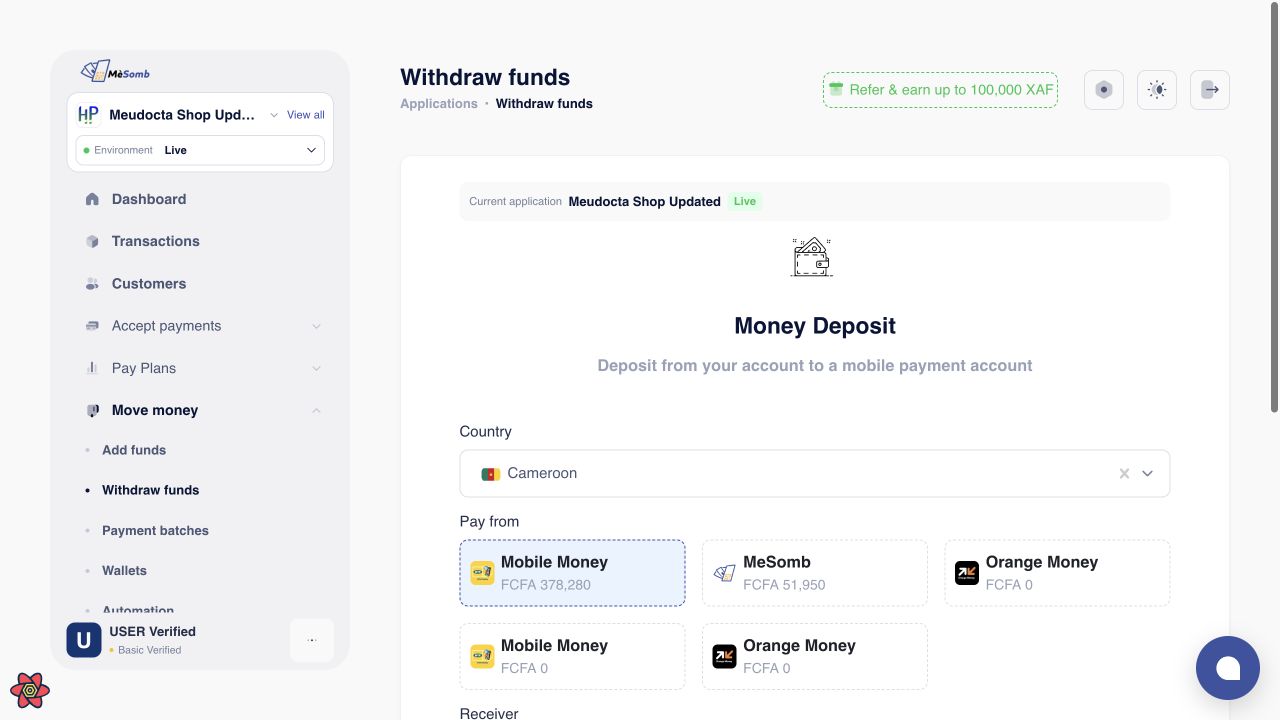
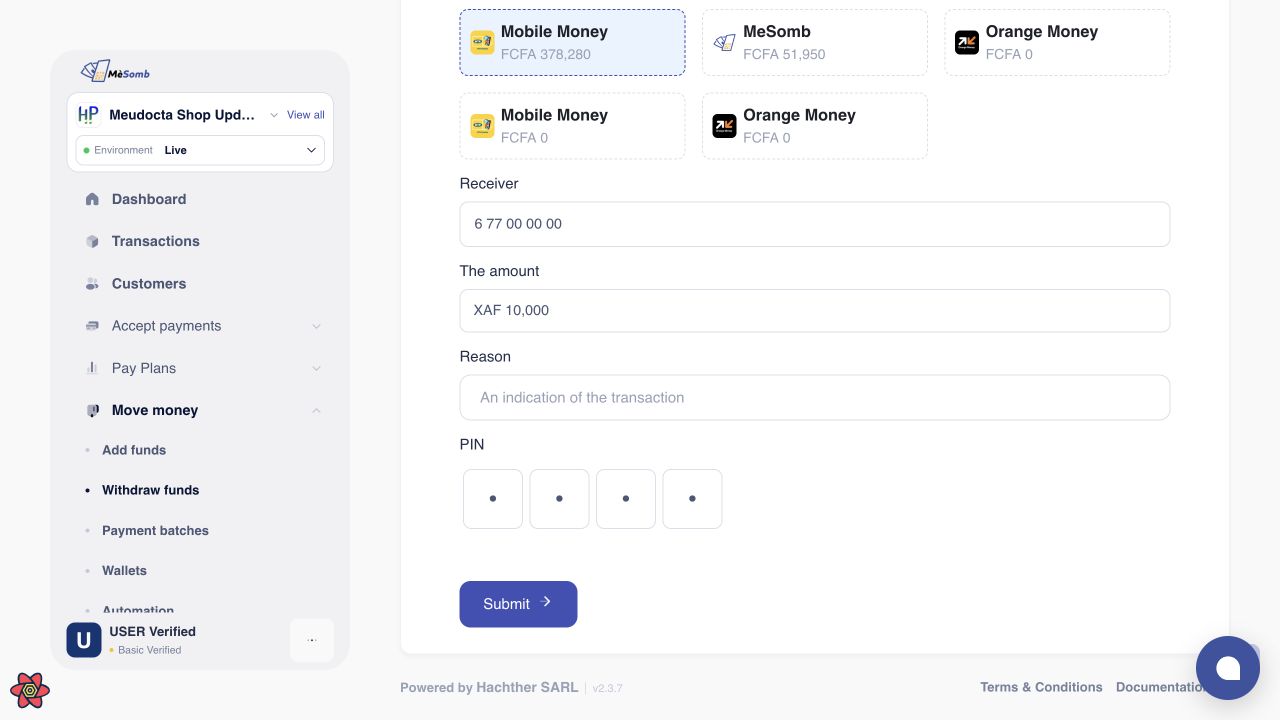
If Pay from has no available account, do not continue. Check the application, country and source balances before entering a PIN or requesting a quote.
5. Review before confirming
On the review screen, check the application, recipient identifier, operation, amount, transaction fees and total debited. The total debited is the amount plus fees, not just the amount the recipient receives.
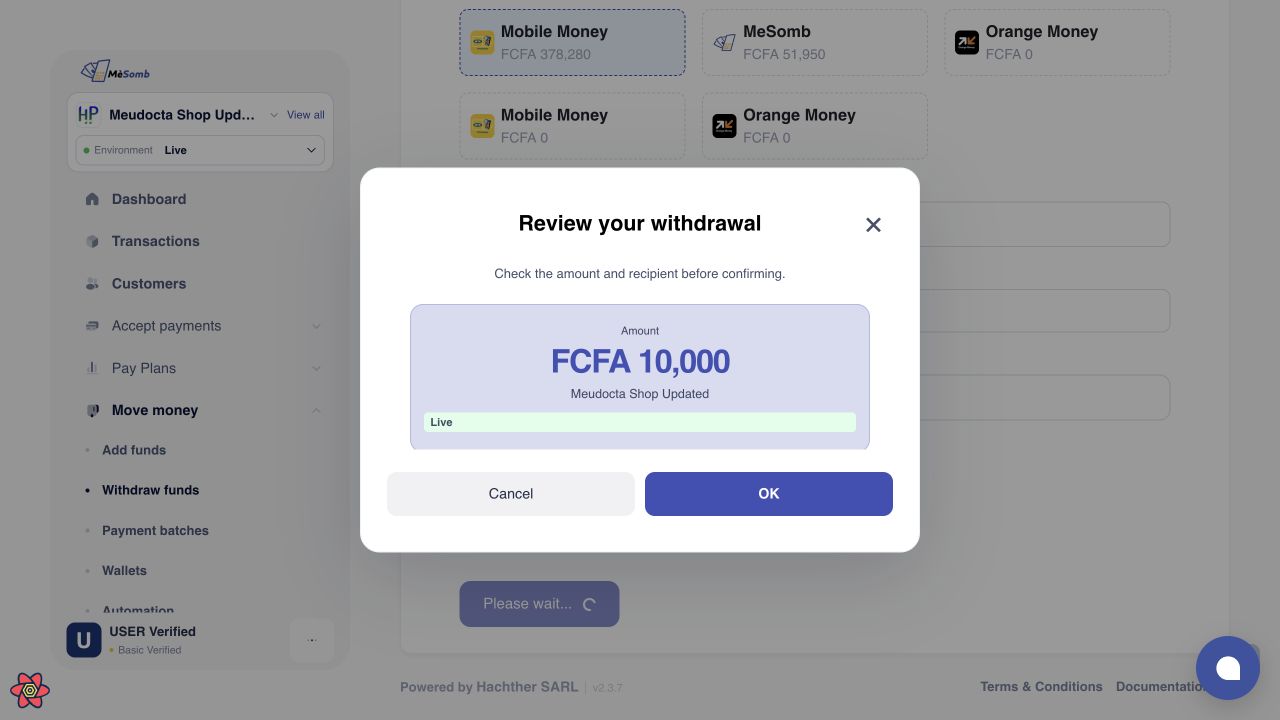
Scroll inside the review panel to see all recipient details, fees and the total debit before confirming. A small screen may not show everything at once.
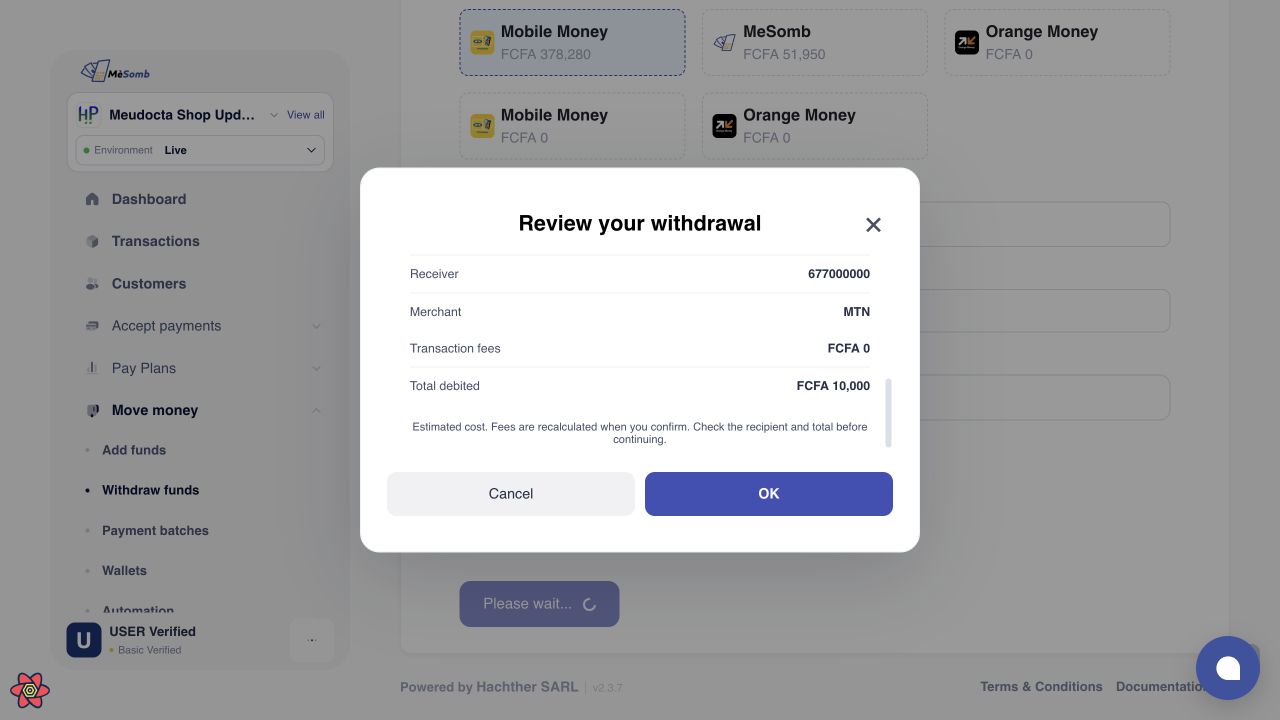
This example quotes 10,000 XAF with zero estimated fees. Your fees can differ by method and account; do not assume withdrawals are free.
For a mobile money deposit, MeSomb attempts to display the recipient's name. If the name is unavailable, check the destination yourself; an unavailable name is not proof that the destination is correct. Cancel if the details are wrong or you are unsure.
The quoted cost is an estimate. Fees are recalculated when you confirm. Make sure the account has sufficient funds and allowance for the final debit.
Confirm only when the details are correct. Choosing Cancel leaves the withdrawal unsubmitted.
6. Check the result and keep the reference
Read the message after confirmation. When offered, choose View transaction to open the transaction details. You can also open Transactions for the same application to check its recorded status and reference.
| What you see | What it means | What to do |
|---|---|---|
| Completed transaction | The transaction is recorded as successful. | Keep the reference and check the destination account if needed. |
| Pending or validating | Processing or a review is not finished. | Check the transaction again; do not submit a duplicate withdrawal. |
| Request submitted | A request was accepted, which can occur for a manual transfer. It does not by itself prove that the destination has been credited. | Follow the recorded transaction and any notification from MeSomb. |
| Failed transaction | The operation is recorded as unsuccessful. | Read the reason, check the balance and transaction record, and resolve the issue before retrying. |
Processing depends on the method, provider and any required review. Do not assume every withdrawal is instant or rely on a fixed completion time from this guide.
If something goes wrong
Your profile is not verified
Complete or correct your personal profile submission. A pending submission is not an approval. Follow the account's verification message before attempting another withdrawal.
There are insufficient funds or a limit is reached
Check the selected source balance, fees and total debit. A displayed balance is not a remaining-limit counter: daily and monthly account allowances and application restrictions can also block a withdrawal. Creating another application does not reset shared account limits.
The PIN is rejected or forgotten
Use the PIN reset guide. Do not send your PIN to support or keep guessing. Changing a login password is not the same as resetting the withdrawal PIN.
You see a timeout or no final result
Open Transactions and check whether the withdrawal was recorded before trying again. A timeout does not prove failure. If the transaction is pending, its result is unclear, or you cannot identify the request, contact support instead of creating another withdrawal.
A completed withdrawal is not visible at the destination
Confirm the destination details and review the recorded transaction. Contact support with its reference; do not create another withdrawal just to test whether the first one worked.
Contact support safely
Use the support channel available in MeSomb Business. Provide the application, Live or Sandbox environment, transaction reference if available, amount, currency, approximate submission time and exact error message. Mention whether the transaction appears in Transactions.
Never send your withdrawal PIN, login password, one-time verification code or API secret key. Redact unrelated personal information from screenshots.