
Create and share your first payment link
Create a hosted checkout without writing code. This guide uses one product, one unit and a one-time price of 10,000 XAF. It does not cover subscriptions, donations or advanced checkout options.
Screenshots and narration follow the documentation language. The tutorial creates a test link only: no customer message is sent and no payment is made. Never use the example URL for a real order.
Before you start
- Sign in to MeSomb Business and select the application that should receive the payments. You need access to payment-link management for that application.
- Start in Sandbox for practice. For real orders, use an eligible Live application and create the link in Live; a Sandbox link does not become a real-payment link when you change your workspace environment.
- Prepare a clear product name, description, price and currency. You can use an existing product or create one during link setup.
1. Open Payment Links
Check the application and environment in the workspace switcher. Open Accept payments, then Payment Links, and choose Create payment link. The menu labels in the screenshots may differ from your selected language.
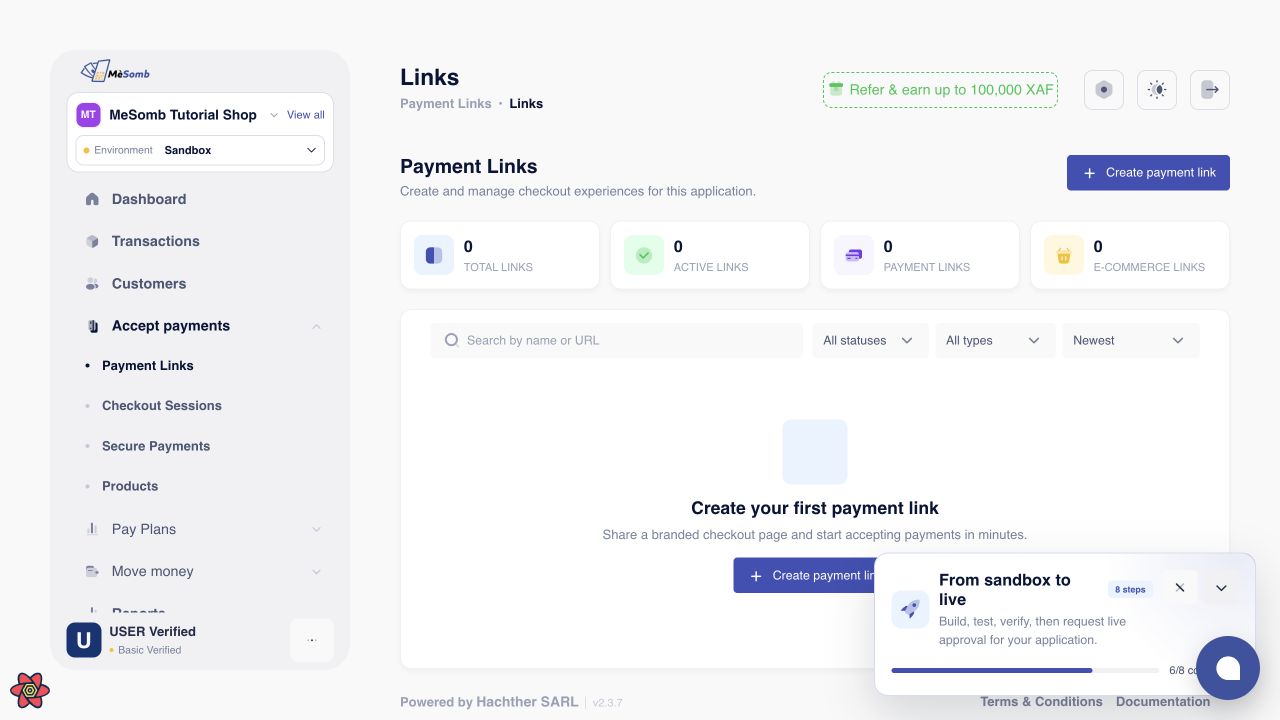
2. Add one fixed-price product
Keep Products and subscriptions selected in the payment-link form. Open the product selector and choose your existing fixed-price product. The tutorial selects Tutorial order, priced at 10,000 XAF; it does not open the product creation form.
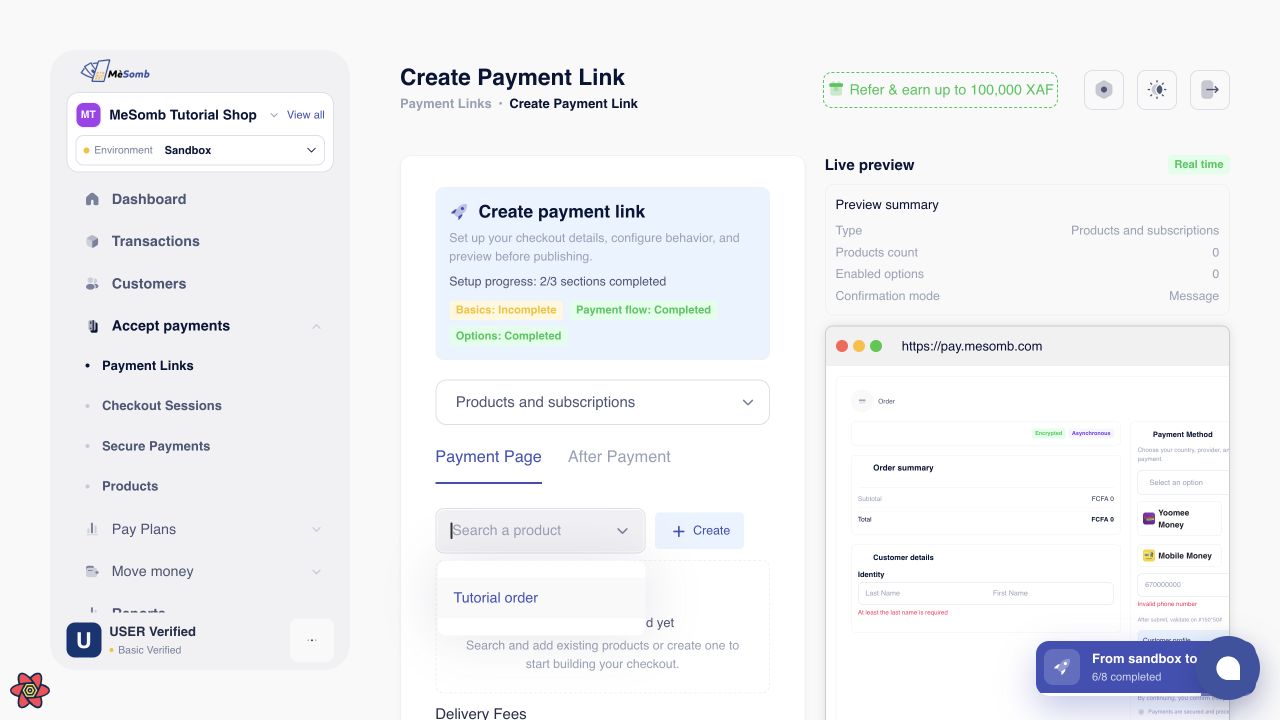
If you need a new product, prepare it under Accept payments, then Products, or use Create beside the selector. Set its name, description, one-time price and currency before returning to the link. Saving a product does not create a payment link.
For this simple fixed-amount example, keep quantity at one and Adjustable disabled. Leave delivery charges, extra fees and other optional settings unchanged unless your order needs them. Check all enabled charges before saving.
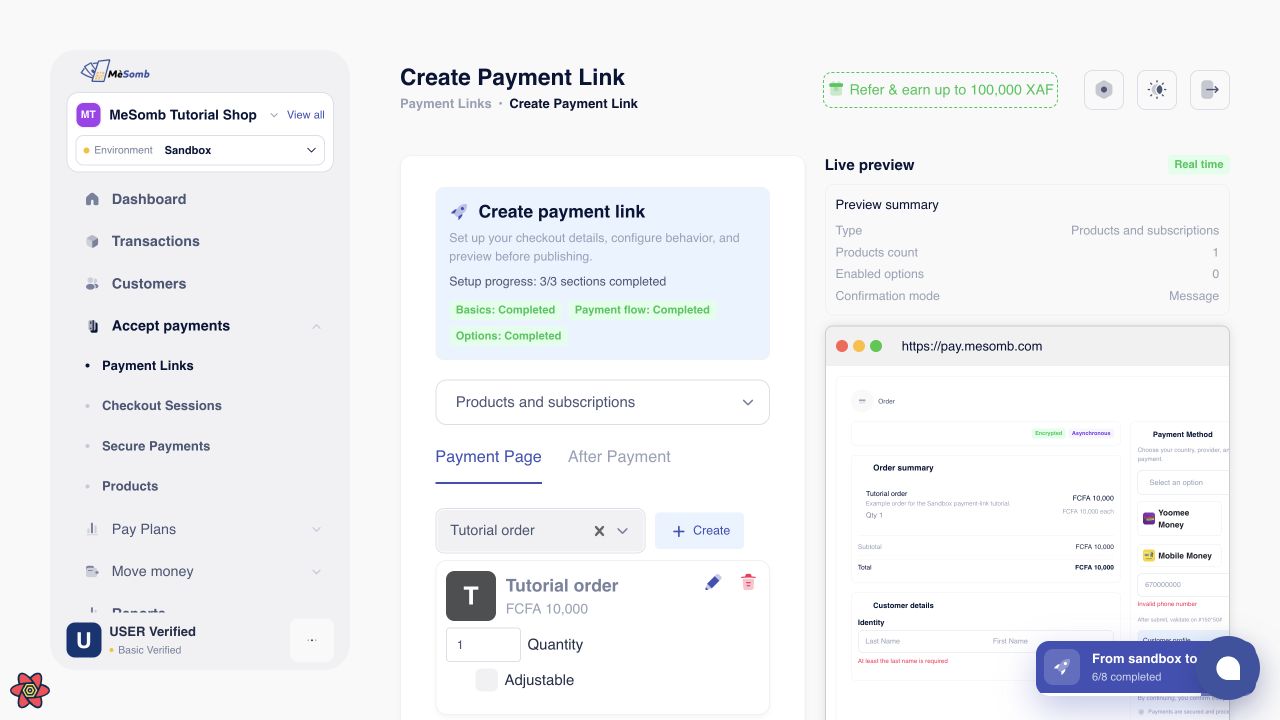
3. Save and check the link
Scroll to the bottom of the payment-link form and verify the preview total. Choose Create payment link in the left-hand form, not Pay inside the customer preview. Saving the link does not charge the customer.
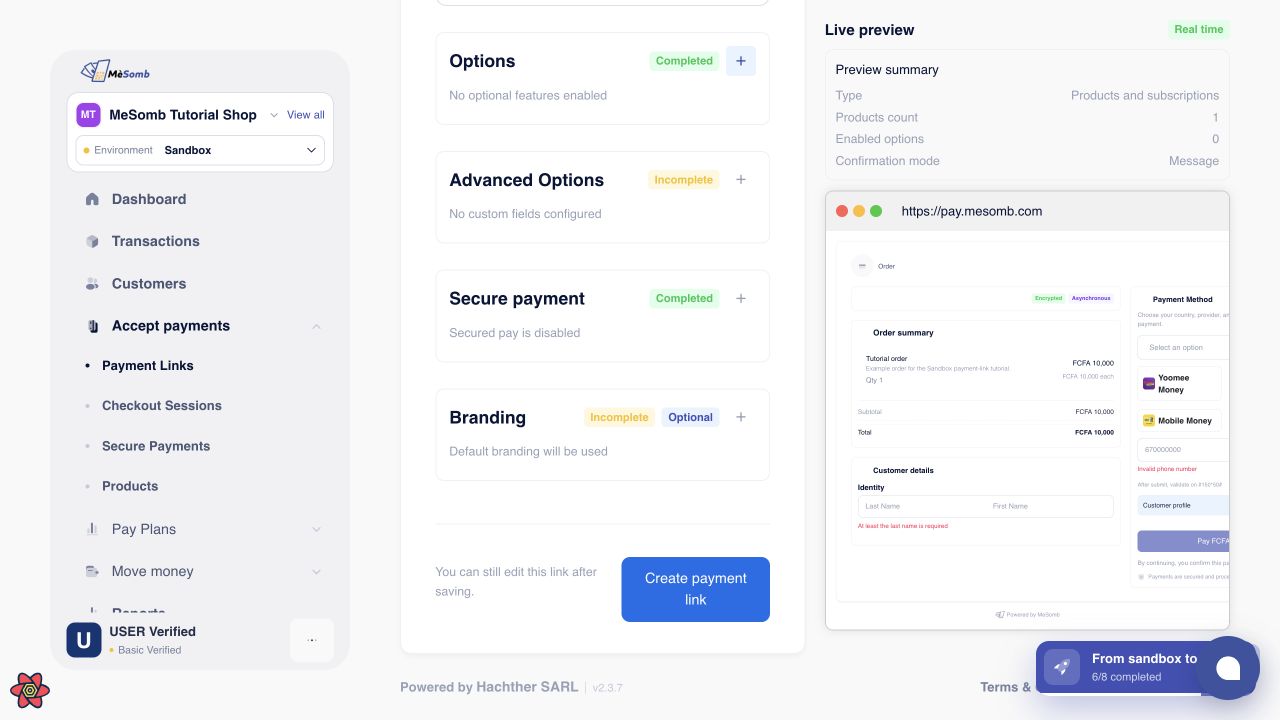
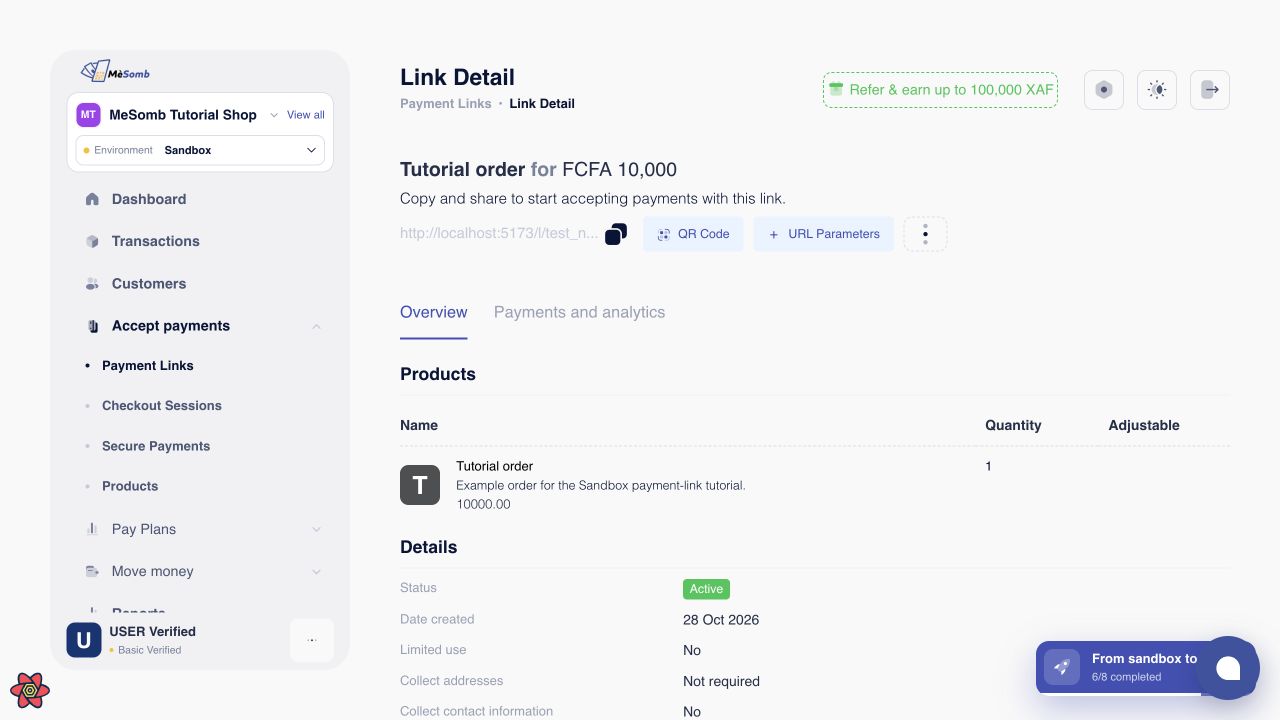
On the saved link page, verify the product, quantity, amount and Active status. If an error or timeout occurs, check the Payment Links list before trying again so you do not create a duplicate.
4. Verify the customer checkout
Copy the customer URL from the saved link page and open it in a separate tab. Check the business name, product description, quantity, currency, total and available payment methods. You do not need to make a payment just to inspect the page.
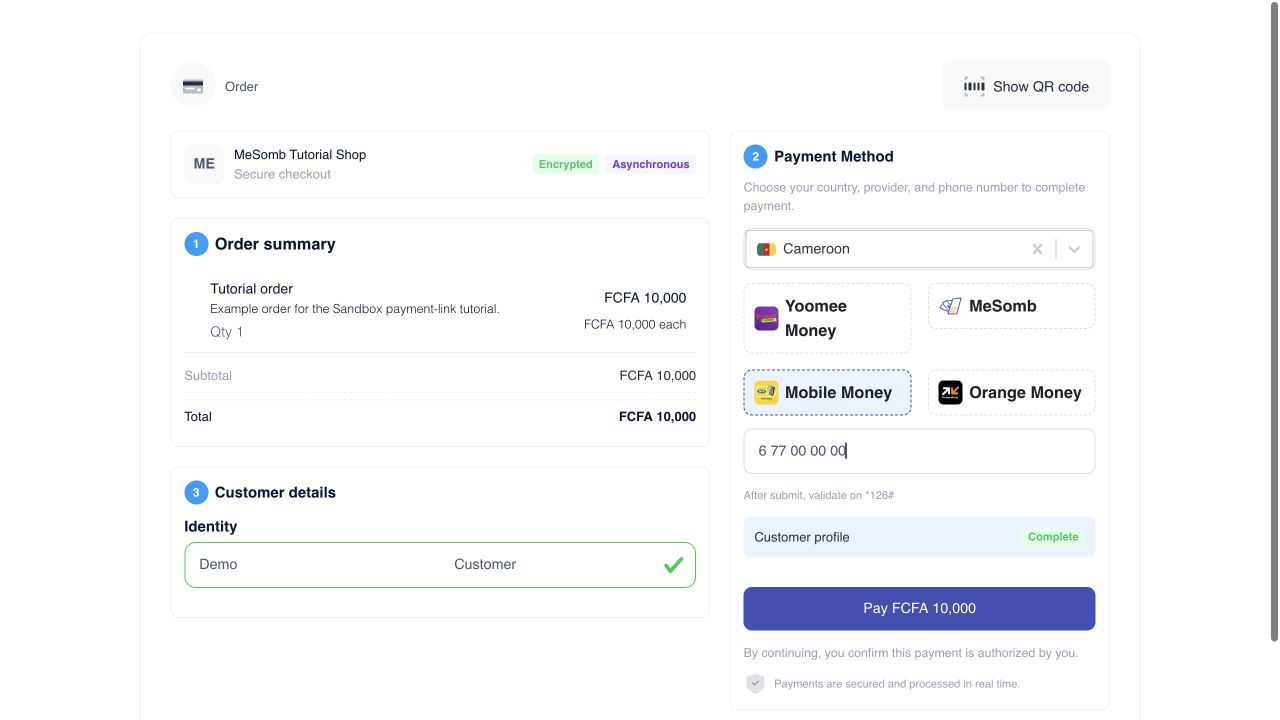
Do not share the link if the amount is zero, the currency is wrong or the customer page differs from what you intended. Compare the saved product and actual checkout, correct the configuration and check again. Contact support if the mismatch remains.
5. Copy and share the customer URL
Use the copy icon beside the URL on the saved link page. Share that customer URL, not the address of your dashboard or link-management page. If copying does not work, check your browser clipboard permissions and verify the pasted URL before sending it.
Include the order description, expected amount, currency and any payment deadline in your WhatsApp message, SMS or email. Use your own customer URL, not the localhost demonstration URL shown in these screenshots. Do not send passwords, PINs or API keys with a payment link.
6. Check the payment status
Open Payments and analytics on the saved link, or Transactions for the same application. A view, copied URL or customer screenshot does not prove that a payment succeeded. Verify the recorded transaction status and reference before fulfilling the order.
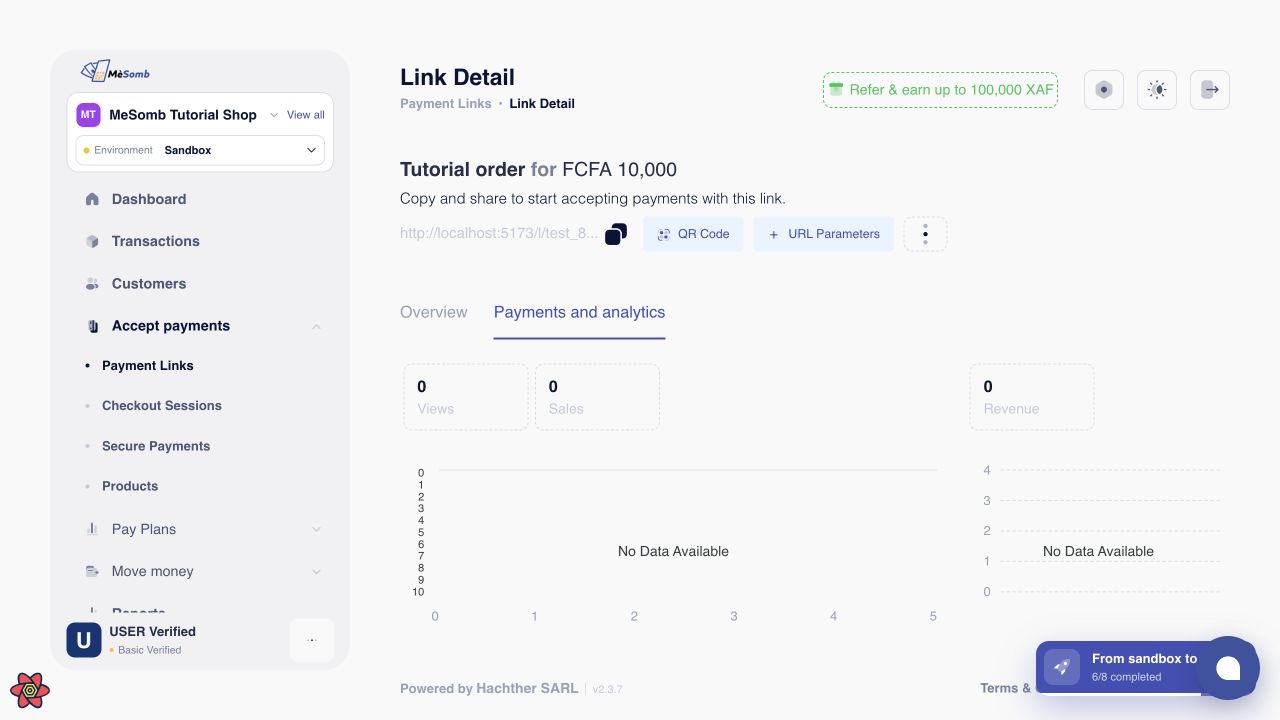
If a payment is pending or its result is unclear, check the transaction and contact support with its reference. Do not ask the customer to pay again until you understand the first result.
Troubleshooting
If you cannot find the link, check the application, environment and list filters. Sandbox and Live links are separate. If checkout is unavailable, review the link status and application eligibility before sharing it again.
For a first link, avoid advanced options until this basic flow works. Collect only the customer information needed for the order. Keep customization, recurring prices and customer-chosen amounts for separate setup tasks.