
Set or reset your withdrawal PIN
Your withdrawal PIN authorizes financial operations. It is separate from your login password and your one-time verification code. Follow this guide to create it for the first time or replace an existing PIN.
Before you start
- Sign in to your own MeSomb Business account and keep access to the email address that receives your verification code, including its spam folder.
- Choose a private four-digit PIN. Avoid repeated digits, obvious sequences and personal dates. Never use the sample PIN from a demonstration for a real account.
- MeSomb may ask you to reauthenticate or require a security review. Completing OTP verification does not necessarily mean that withdrawals are immediately available.
When to reset your PIN
Reset your PIN if you forgot it, suspect someone else knows it, or MeSomb support asks you to change it for security. If incorrect attempts have blocked access, follow the security instructions shown on the page; resetting the PIN does not necessarily remove a hold.
Your PIN is personal. Do not share it with teammates. If someone else had access to it, choose a new private PIN and review access to your account.
1. Open account security
Open Settings, then Security. In Financial Account, find MeSomb PIN Code. If no PIN exists, its status is Not defined and the action is Set PIN Code. If a PIN already exists, use Reset PIN Code instead.
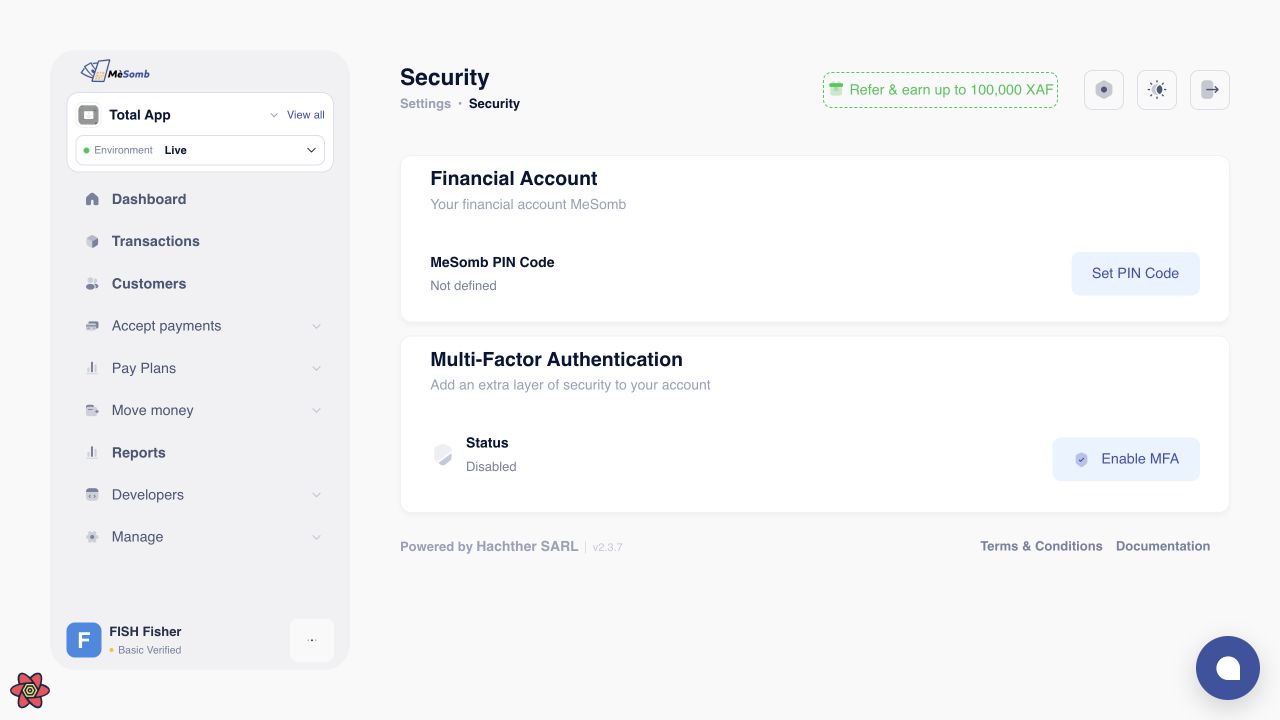
Screenshots and narration follow the documentation language. The available setup or reset button depends on whether your account already has a PIN.
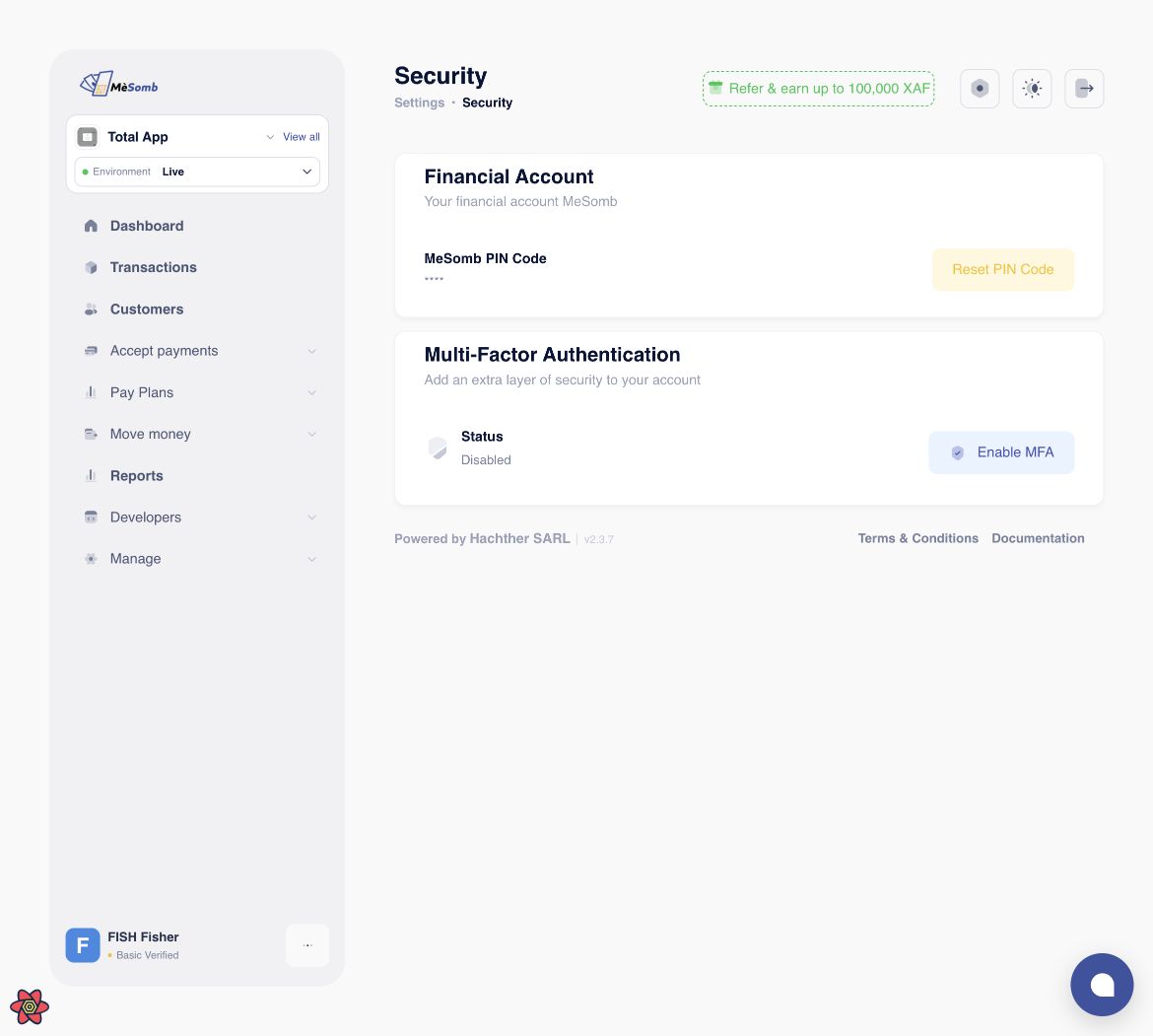
The PIN fields are left empty in the recording. The configured-state screenshot is an illustration; enter and save your own PIN privately.
2. Request and verify your code
Choose Set PIN Code or Reset PIN Code to start the request. Check your email, including spam, for the one-time verification code. The current form has six character boxes. Enter the code you received and choose Verify OTP. The OTP is not the four-digit PIN you are creating.
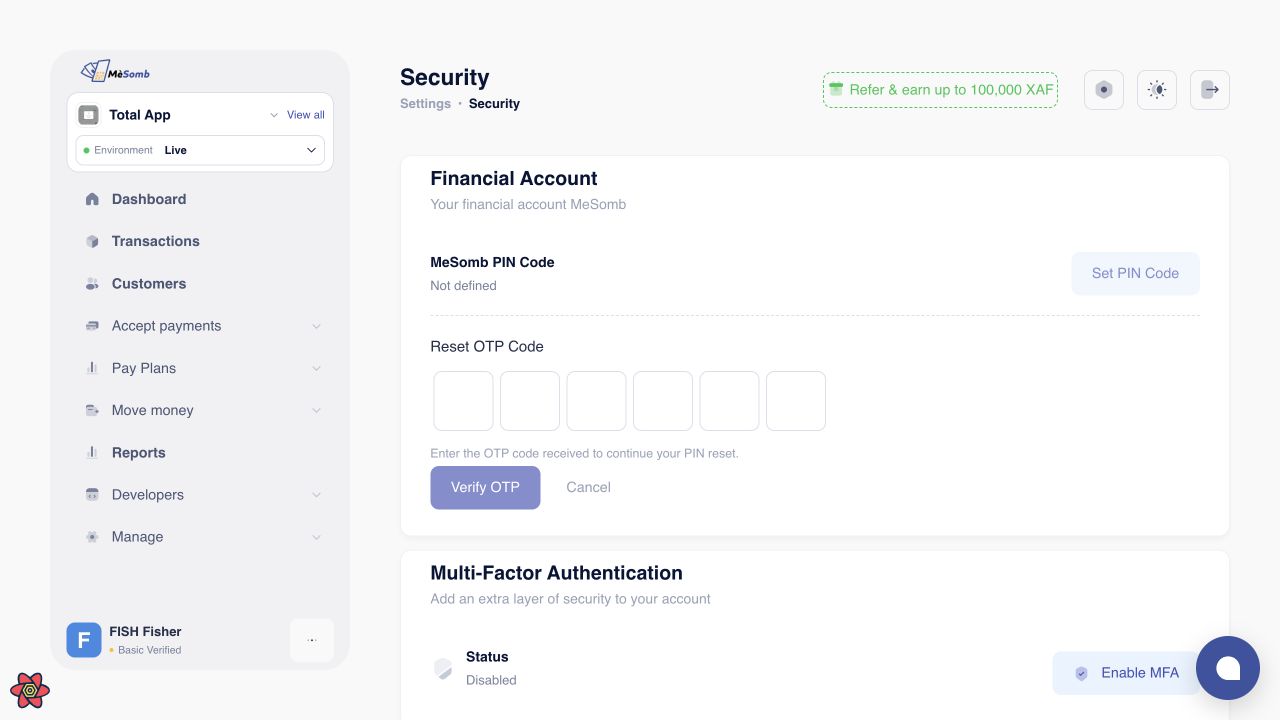
Never copy a code from a screenshot or video. Real verification codes are specific to a request, expire and can be used only once.
3. Follow any security review
If the page says your request is under security review, wait for MeSomb to approve it. Use the available status check and follow the instructions shown after approval; a fresh OTP verification may be required. Do not keep creating requests to bypass a review.
4. Choose and confirm your PIN
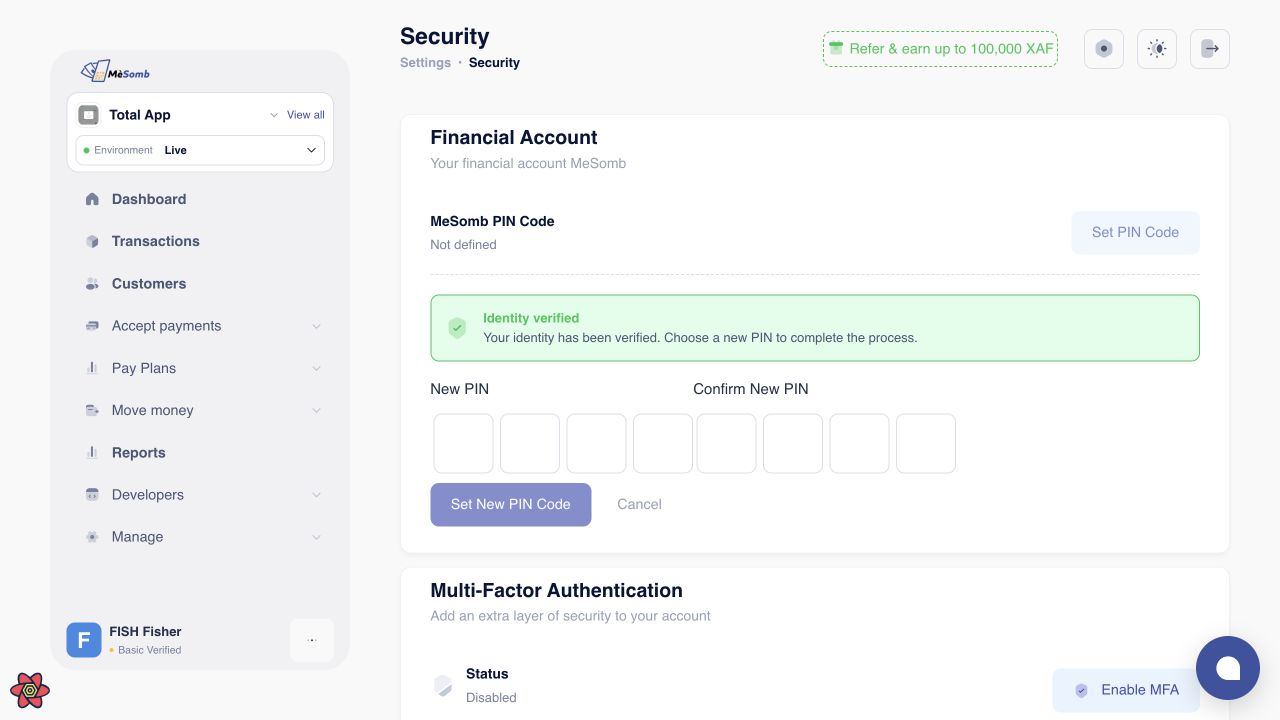
When Identity verified or PIN reset approved appears, enter four digits in New PIN and repeat the same digits in Confirm New PIN. Both fields mask the digits. Choose Set New PIN Code to save. There is no current-PIN field in this flow.
5. Check the result
After a successful save, the setup form closes and MeSomb PIN Code displays a masked value instead of Not defined. The available action becomes Reset PIN Code. Do not assume the PIN was saved if an error appears or the form stays open.
A PIN reset can trigger a temporary withdrawal hold or another security restriction. Setting a PIN does not remove profile verification requirements, application restrictions or transaction limits. Read any security message before returning to Withdraw funds.
Continue with your withdrawalTroubleshooting
The code does not arrive or is rejected
Check the account email and spam folder. Use the code for the current request, not an older email. If it expired, cancel and start again when allowed. Avoid repeated guesses; failed attempts are limited. Contact support if delivery or verification keeps failing.
The PIN is rejected or the fields do not match
Enter exactly four digits in both fields. Choose a less predictable PIN if MeSomb rejects it as too easy to guess. Do not use your login password or the OTP as your PIN.
You see a timeout or an unexpected error
Reload the Security page and check whether the PIN status changed before restarting. If the result remains unclear, contact support with the approximate time and error message. Never send your PIN, OTP or password.